Zurück zum Blog

Every IPv4 address of the servers you order from us sits behind anti-DDoS protection, always on. Until recently it worked silently: the attack was filtered and, at most, you saw an odd spike in your graphs. Now you can see exactly what happens.
In the DeluxHost Cloud panel, open Firewall from the sidebar and pick the address to check. The Protection active badge confirms that traffic data is coming in.
The big picture
The Overview tab sums up the address:
- Attacks: how many attacks were recorded, how many this week and how many today.
- Last attack: when the latest one started, and its peak.
- Clean traffic and Dropped traffic: the average traffic that reached your server and the traffic filtered out over the last 24 hours.
- Bandwidth overview: a chart of passed and dropped traffic over time, from 10 minutes to a week, with auto-refresh.
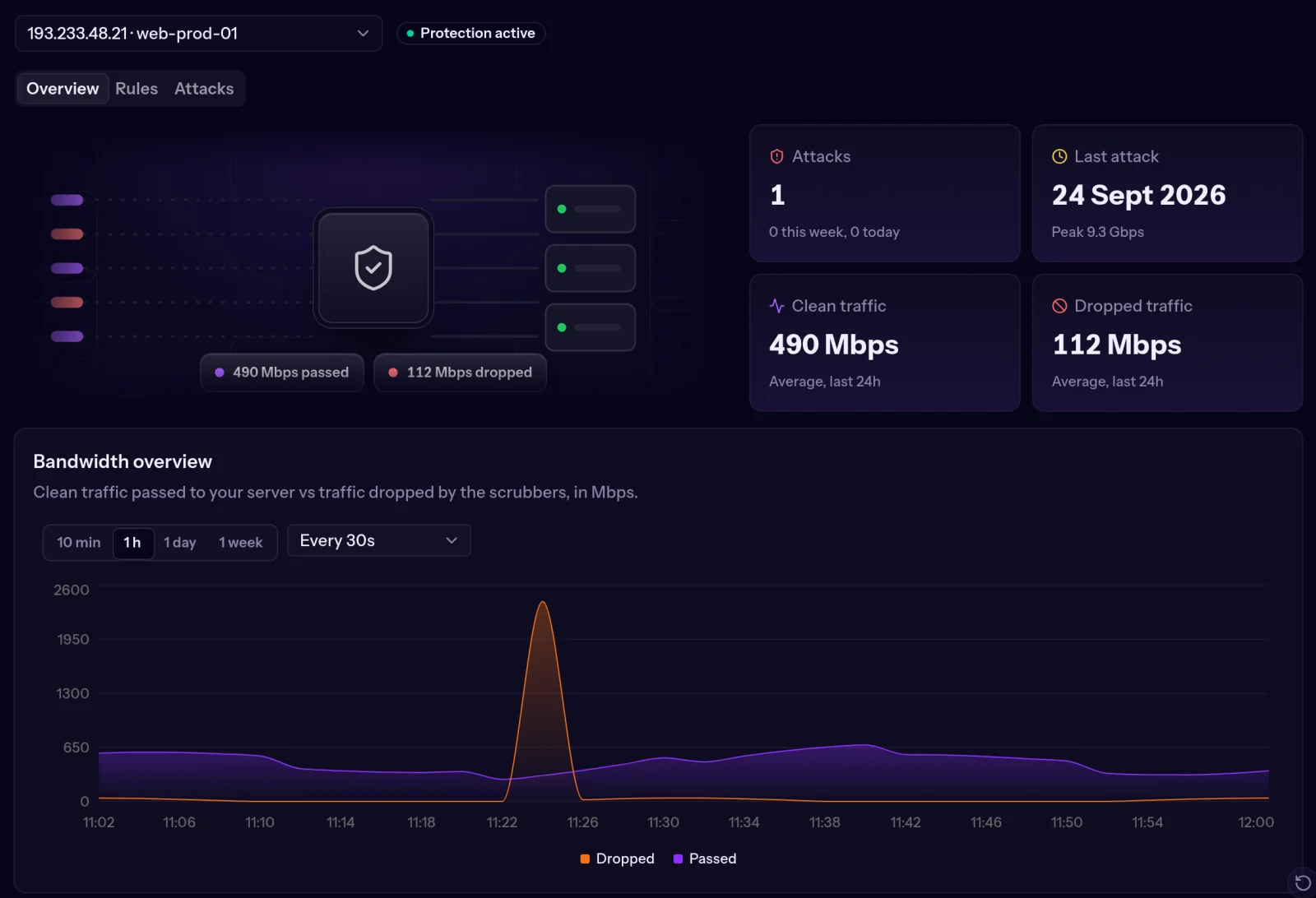 The Firewall page: clean traffic, dropped traffic and a filtered attack in the chart
The orange spike in the chart is an attack: traffic our filters dropped before it reached your server. The purple line, your legitimate traffic, stays where it was.
Attack history
The Attacks tab lists every attack on the selected address: ID, start and end, maximum peak and the flags that describe the traffic (for example SYN, ACK, UDP). An attack still in progress shows Incoming instead of an end time.
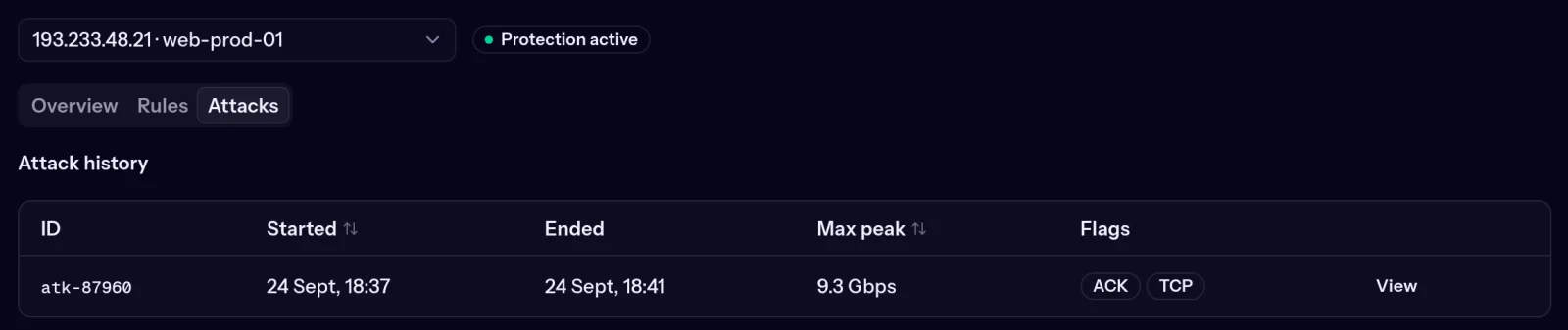 The attack history of an address
View opens the details: target IP, duration, peak in bandwidth and packets per second, and the breakdown by port, so you know which services were targeted.
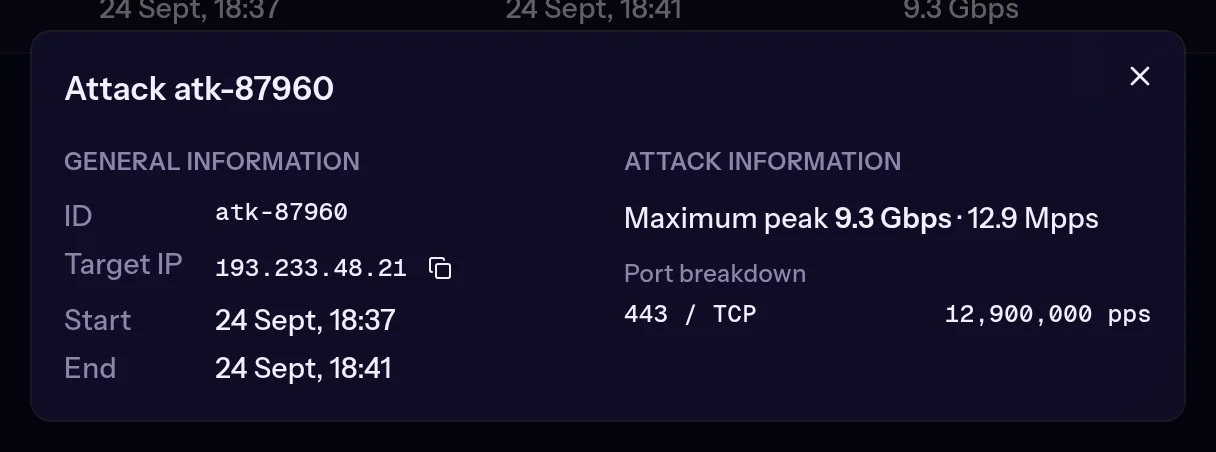 The details of an attack, with its peak and the targeted port
It helps you tell whether a slowdown was an attack or an application problem, see which service is being targeted, and have hard data when you talk to us: if you open a ticket about an attack, include the ID shown here.
Rules for your applications
Without rules, every port gets the standard protection profile, which suits most cases. But if your machine runs a specific application, a game server or a web server, you can tell the filters: on the Rules tab click Create rule and choose the protocol, application and port.
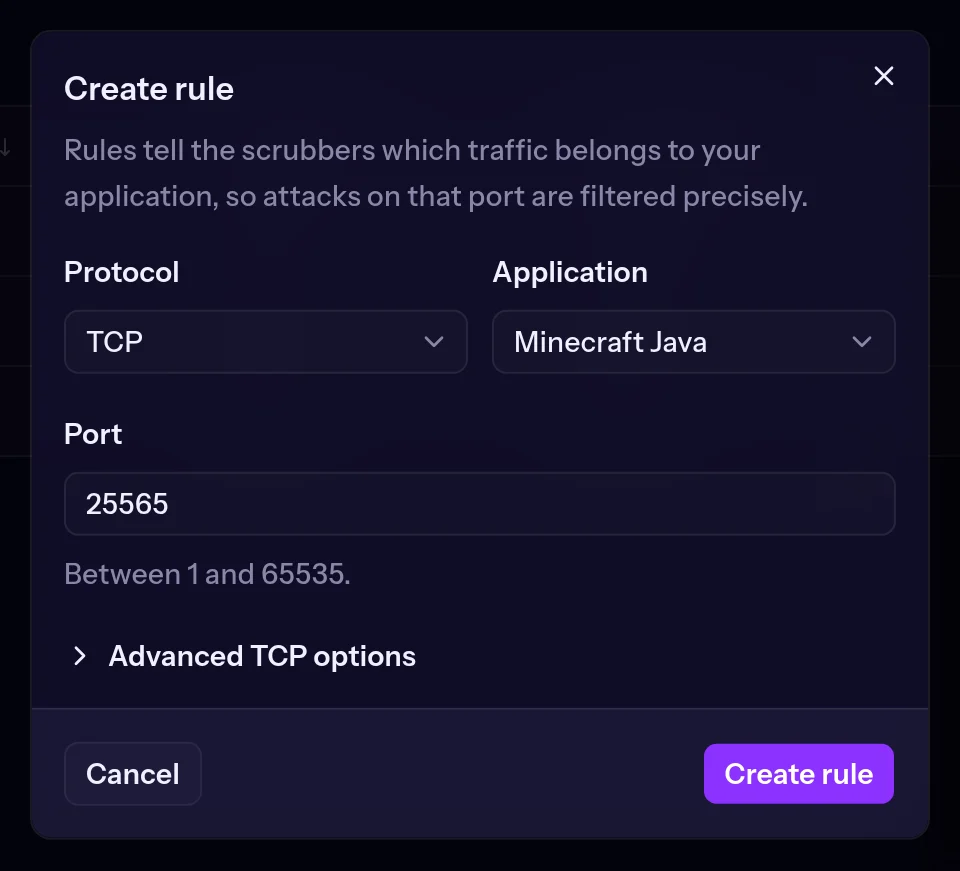 Creating an anti-DDoS rule for a Minecraft server
With the right rule, the filter recognises that application's traffic: attacks on that port are dropped more precisely and real players or visitors get through cleanly. If your application is not listed, choose Custom; for TCP there are advanced options too, such as a limit on new connections per minute. The rule moves from Creating to Working once it is active.
These rules decide how attacks are filtered; they are not a list of addresses to block or allow. To open and close ports, use the Firewall tab on your server's page.
Through the API too
Attack history, traffic and rules are also available through the DeluxHost API: bring the data into Grafana, or get an alert while an attack is under way.
You will find it all on the Firewall page at cloud.deluxhost.net.